Notepad++ Clone
Downloads and support
Self-service guidance for installing and maintaining Notepad++ Clone on Windows. Download the current stable build below, then verify the published SHA-256 checksum before running it.
Download and run
Download NotepadPlusPlusClone.exe for Windows x64 directly from this site. There is no installer: save the executable in a folder you will keep, then run it from there. Help content is inside the executable. The same topics are also on the product page.
- Download NotepadPlusPlusClone.exe from this site.
- Save it in a lasting folder, such as a folder under your user profile.
- Run the file from that folder.
Microsoft Edge may ask you to Keep the download
Microsoft Defender SmartScreen often flags uncommon executables that are not Authenticode-signed. PDFUtil, Screenshot Capture, Notepad++ Clone and Environment Variable Configurator currently ship as unsigned bundles, so Edge may show a warning. Some Edge versions ask you to choose Keep. Some also ask for Keep anyway. That warning is a reputation and publisher check. It does not mean a Baker Utilities checksum failed. Keep the file only when you started the download from this site. A matching SHA-256 checksum confirms that the downloaded bytes match the published release. It does not itself prove publisher identity.
- After the download starts, open Downloads in Microsoft Edge.
- Open the menu for NotepadPlusPlusClone.exe and choose Keep only when you started the download from this site.
- If Edge shows a further SmartScreen prompt, open the Delete menu and choose Keep anyway.
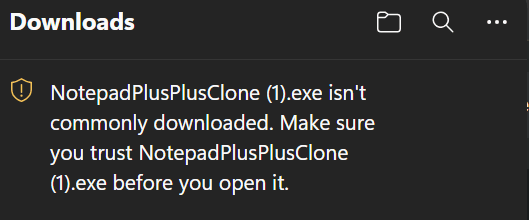
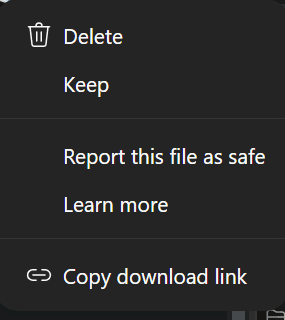
Some Edge versions finish the download after Keep. Some show a further Keep anyway prompt. Optional: verify the SHA-256 checksum before you run the file. Do not run it if the checksum does not match.
Verify the SHA-256 checksum (Optional)
A SHA-256 checksum is a fingerprint of the downloaded file. Use it to confirm that NotepadPlusPlusClone.exe matches the published release before you run it. A matching checksum does not itself prove publisher identity. Do not run the file if the checksum does not match.
- Download NotepadPlusPlusClone.exe and the matching .sha256 file from this page, or copy the SHA-256 value shown under File details and checksum.
- Open PowerShell in the folder that contains the downloaded executable.
- Paste the compare command below. PowerShell reports whether the checksum matches.
- If the checksum does not match, do not run the file. Download it again from this site.
Compare against the published release
if ((Get-FileHash -Algorithm SHA256 .\NotepadPlusPlusClone.exe).Hash -eq '323ff46d1804f99e4cbb2d5a651a6c524b92213f004bc9fa896f70600da79057') { 'Checksum matches' } else { 'Checksum does not match. Do not run this file.' }Updating
Notepad++ Clone checks the signed HTTPS stable manifest, downloads the newer executable, and compares the SHA-256 hash with the published value. If the hash does not match, the update aborts and the installed version stays in place. You can apply an update from Help, or it can apply when you close the application.
Rollback
Keep the previous executable until you confirm the new version works. If a release is withdrawn, Baker Utilities will point the stable download back to the last known-good version and document the change on the release notes page.
Related pages
Stable release Notepad++ Clone 1.1.4
- Published
- 16 September 2026 (UTC)
Microsoft Edge may ask you to choose Keep. Some versions also ask for Keep anyway. That is expected for the current unsigned build. Why this happens and how to verify the download.
Release notes for 1.1.4Previous versionsFile details and checksum
Direct download from public object storage. Verify the SHA-256 checksum before running the executable.
- Version
- Notepad++ Clone 1.1.4
- File size
- 156.4 MiB (164,009,867 bytes)
- SHA-256
- 323ff46d1804f99e4cbb2d5a651a6c524b92213f004bc9fa896f70600da79057
Return to the Notepad++ Clone product page.